
Cloudflare for Brands
Set up TollBit analytics, Agent Site, and visitor routing from cited content for a brand site served through Cloudflare.
This guide covers setting up TollBit for a site served through Cloudflare: sending logs to our platform for analytics, setting up Agent Site, and routing visitors from cited content. Agent Site and visitor routing are handled by a single Cloudflare Worker, which works the same way on every Cloudflare plan. Analytics comes either from that same Worker or, on the Enterprise plan, from Logpush.
Before You Start
Add and Verify Your Property
Before you begin this guide, add your property in the TollBit dashboard and verify that you own the domain. Follow the steps in Adding Your Property to create the TXT record and set up the tollbit subdomain in your DNS.
Proxy Your Site Through Cloudflare
The Worker only runs on traffic that is proxied through Cloudflare. On your site's DNS page, make sure the records for your site have the proxy status Proxied.

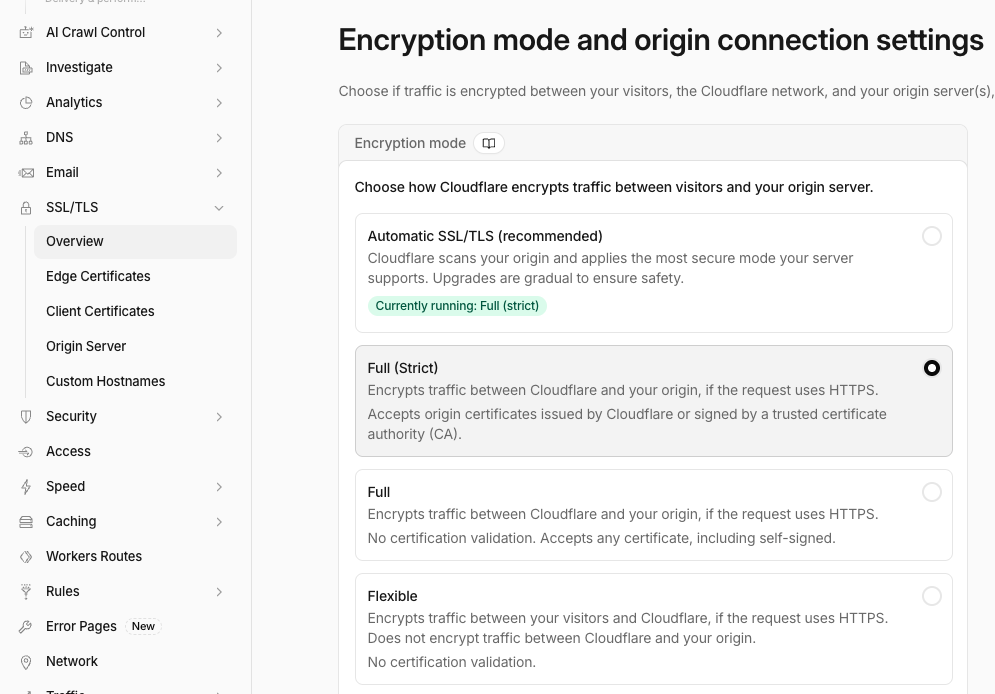
Set SSL / TLS to Full (Strict)
Go to the SSL/TLS tab, open the overview page, and click Configure. Choose Full (strict), so that Cloudflare fetches from your origin over HTTPS. Before doing this, make sure your origin server accepts HTTPS requests. Most do, unless you are running custom or legacy servers.
Allow TollBit's IP Addresses
RequiredTollBit must be able to reach your sites. We request your pages to set up your Agent Site and to power the Agent CMS view of your content. If our requests are blocked, challenged, or rate-limited, neither of these will work correctly.
TollBit sends these requests from a fixed set of static IP addresses, published at https://tollbit.com/static-ips.txt. At the time of writing, the list is:
52.22.183.94
3.220.109.109
Always use the published list as the source of truth, and check it again if TollBit tells you it has changed.
Our requests use the user agent tollbot/1.0, so you may see it show up in your logs.
Allow these addresses in Cloudflare, and make sure they are allowed through every security layer that could block or challenge our requests. This applies to every hostname you onboard with us:
- WAF: custom rules, managed rules, rate limiting rules, and your Security Level.
- Bot protection, if enabled: make sure requests from these IPs are not blocked or challenged by Bot Fight Mode, Super Bot Fight Mode, or Bot Management.
- Any firewall or WAF in front of your origin servers, outside of Cloudflare.
If you are unsure whether your configuration blocks us, contact [email protected] and we will confirm from our side.
Steps for Analytics
There are two ways to send your logs to TollBit. Choose one.
| Logpush | Worker | |
|---|---|---|
| Cloudflare plan | Enterprise only | Any plan |
| How logs reach TollBit | Cloudflare delivers them to a storage bucket that TollBit reads from | The Worker forwards them to TollBit directly |
| What is logged | Every request to your site | Requests on the routes the Worker is attached to |
| Setting in the Worker code | FORWARD_LOGS = false | FORWARD_LOGS = true |
Use only one analytics setup methodIf Logpush is set up and the Worker also forwards logs, your traffic is counted twice.
Option 1: Logpush (Enterprise)
On the Enterprise plan you have access to Cloudflare's Logpush feature, which delivers HTTP request logs for your site to an S3, R2 or GCS bucket. If you already push logs to one of these, we can ingest them from where they are stored.
Make sure the following are included in the logs:
- The
ClientIPfield, enabled in the Fields step of your Logpush settings. It is optional, but including it gives you better analytics. - The
locationresponse header, and thesignature-agent,signature-inputandsignaturerequest headers. Follow these steps in Cloudflare's documentation to add them as custom fields. Select Response Header as the field type forlocation, and Request Header for the other three.
If the logs are delivered to an S3 bucket, add the following policy to the bucket so TollBit can read them:
{
  "Version": "2012-10-17",
  "Statement": [
    {
      "Sid": "AllowTollbitAccountsAccess",
      "Effect": "Allow",
      "Principal": {
        "AWS": [
          "arn:aws:iam::339712821696:root",
          "arn:aws:iam::654654318267:root"
        ]
      },
      "Action": ["s3:GetObject*", "s3:ListBucket*"],
      "Resource": [
        "arn:aws:s3:::YOUR-BUCKET-NAME",
        "arn:aws:s3:::YOUR-BUCKET-NAME/*"
      ]
    }
  ]
}
Then send [email protected] the bucket name and the path your logs are written to, so we can finish the analytics setup. If your logs are delivered to R2 or GCS, contact us and we will set up access with you.
When you add the Worker code below, set FORWARD_LOGS to false.
Option 2: Worker
The Worker below forwards logs to TollBit by default, so there is nothing to set up here. When you add the Worker code, replace YOUR_SECRET_KEY_HERE with the secret key from your TollBit portal.
Set Up the Agent Site Worker
Reference ImplementationThe Worker code below is a reference implementation. If your site already has routing, caching or security rules at the edge, you may need to adapt it to fit. However you set it up, it should:
- Add your
tollbitsubdomain as a second origin.- Send requests from AI agents to that origin, and all other requests to your existing origin.
- Serve
GETandHEADrequests from your existing origin instead if your Agent Site errors or does not respond in time.- When your origin returns a
404to a visitor, check with TollBit whether a destination is configured for that URL, and serve your own error page if not.If you are unsure how this fits with your configuration, contact [email protected].
Test Before ProductionThe Worker changes how requests are routed at the edge. Where possible, attach it to a staging hostname first, or to a route that covers a small part of your site, and confirm the results with the test requests in Verifying the Setup before attaching it to the route that serves your live traffic.
One Worker Per RouteCloudflare runs only one Worker per route. If a Worker already handles requests for your site, add this code to that Worker instead of creating a second one.
Create the Worker
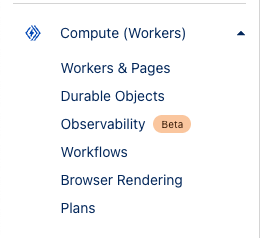
Log into your Cloudflare Dashboard, open the Compute (Workers) dropdown, and click Workers & Pages.
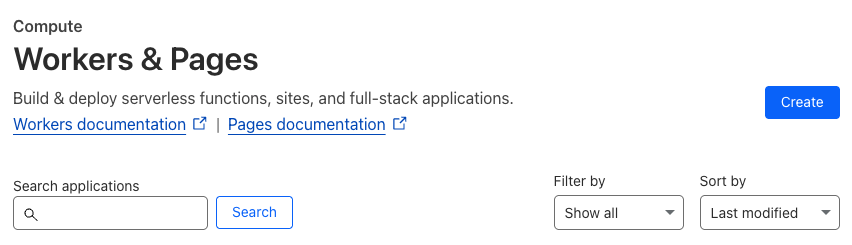
Click the blue Create button near the top.
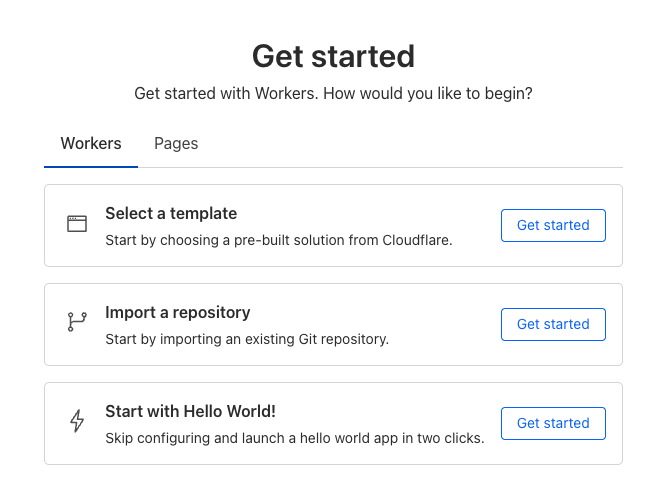
Choose the option to create a hello world Worker. Its code is replaced in the next step.
Give the Worker a name such as tollbit-worker, and click Deploy.
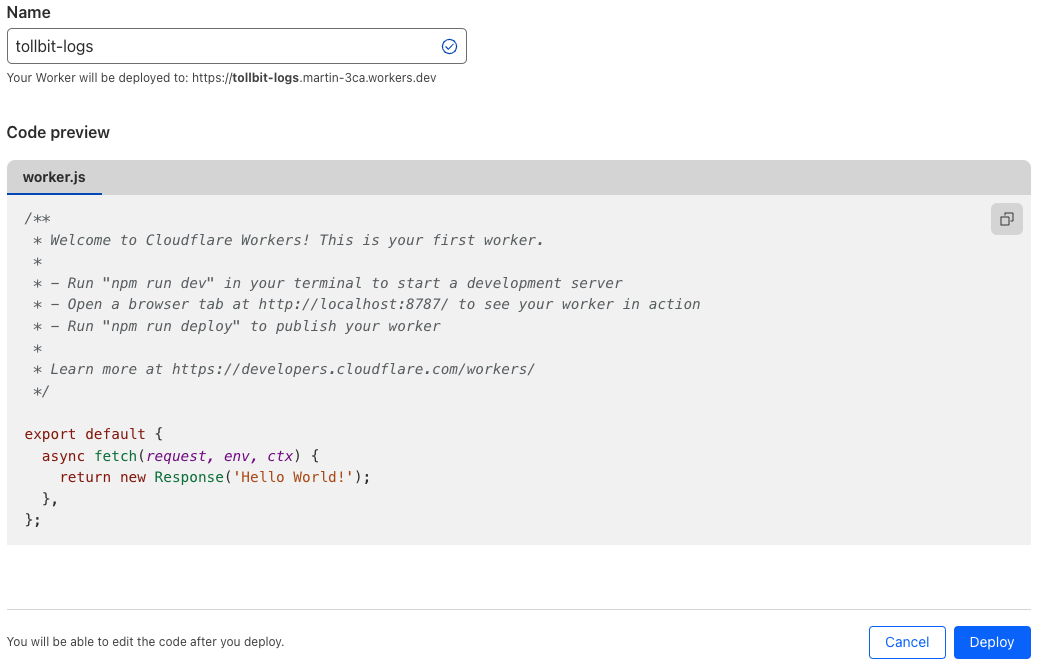
Add the Worker Code
Your tollbit subdomain is set up as part of onboarding your site to the TollBit platform, so complete that first. Once the Worker has finished deploying, click Edit code.
In the worker.js file, delete everything and paste the code below. Then update the two settings near the top of the code to match how you send logs:
- Worker analytics: leave
FORWARD_LOGSastrue, and replaceYOUR_SECRET_KEY_HEREwith the secret key from your TollBit portal. - Logpush analytics: set
FORWARD_LOGStofalse. The secret key is not used, so you can leave it as it is.
// The AI agents routed to your Agent Site. Add any others you would like to route.
const botList = [
  'AgentNativeSearchBot',
  'AI2Bot',
  'AionBot',
  'AIWebIndex',
  'Amazonbot',
  'Amzn-SearchBot',
  'Amzn-User',
  'anthropic-ai',
  'AteveSearchSourceUrlDiscovery',
  'AzureAI-SearchBot',
  'Bravebot',
  'Bytespider',
  'CCBot',
  'ChatGPT-User',
  'claude-code',
  'Claude-SearchBot',
  'Claude-User',
  'Claude-Web',
  'Claude/',
  'ClaudeBot',
  'CloudflareBrowserRenderingCrawler',
  'cohere-ai',
  'Comet/',
  'Cursor/',
  'DesearchBot',
  'Devin/',
  'Diffbot',
  'DuckAssistBot',
  'Exabot',
  'ExaSearchBot',
  'ExaUser',
  'Fellou',
  'Gensparkbot',
  'GitHubCopilotRuntime',
  'goose/',
  'GPTBot',
  'grok-agent',
  'GrokBot',
  'Hermes-Agent',
  'iaskspider',
  'ibou-search',
  'IbouBot',
  'IsonSearchBot',
  'Keenable',
  'Kimi-SearchBot',
  'KimiBot',
  'Lightpanda',
  'LinkupBot',
  'Manus-User',
  'meta-externalagent',
  'meta-externalfetcher',
  'meta-webindexer',
  'MistralAI-User',
  'MojeekBot',
  'MySearchBot',
  'OAI-AdsBot',
  'OAI-SearchBot',
  'OpenClaw',
  'Perplexity-User',
  'Perplexity/',
  'PerplexityBot',
  'rednote-websearch-bot',
  'Reflectionbot',
  'Shap-User',
  'ShapBot',
  'SofyaBot',
  'TalarionSearchBot',
  'Timpibot',
  'YouBot'
]

// Analytics. Set FORWARD_LOGS to false if you send logs to TollBit with Logpush.
const FORWARD_LOGS = true
const tollbitLogEndpoint = 'https://log.tollbit.com/log'
const tollbitToken = 'YOUR_SECRET_KEY_HERE'

// Agent Site failover. GET and HEAD requests are served by your origin instead
// if your Agent Site responds with a 5xx status or does not respond in time.
const AGENT_SITE_TIMEOUT_MS = 10000

// Routing visitors from cited content
const tollbitFallbackOrigin = 'https://fallback.tollbit.com'
const FALLBACK_TIMEOUT_MS = 2000

const sleep = (ms) => {
  return new Promise((resolve) => {
    setTimeout(resolve, ms)
  })
}

const buildLogMessage = (request, response) => {
  const logObject = {
    timestamp: new Date().toISOString(),
    ip_address: request.headers.get('cf-connecting-ip'),
    geo_country: request.cf['country'],
    geo_city: request.cf['city'],
    geo_postal_code: request.cf['postalCode'],
    geo_latitude: request.cf['latitude'],
    geo_longitude: request.cf['longitude'],
    host: request.headers.get('host'),
    url: request.url.replace('https://' + request.headers.get('host'), ''),
    request_method: request.method,
    request_protocol: request.cf['httpProtocol'],
    request_user_agent: request.headers.get('user-agent'),
    request_latency: null, // cloudflare does not have latency information
    request_referer: request.headers.get('referer'),
    response_state: null,
    response_status: response.status,
    response_reason: response.statusText,
    response_body_size: response.contentLength,
    signature: request.headers.get('signature'),
    signature_agent: request.headers.get('signature-agent'),
    signature_input: request.headers.get('signature-input'),
  }
  return logObject
}

// Batching
const BATCH_INTERVAL_MS = 20000 // 20 seconds
const MAX_REQUESTS_PER_BATCH = 500 // 500 logs

let batchTimeoutReached = true
let logEventsBatch = []

// Backoff
const BACKOFF_INTERVAL = 10000
let backoff = 0

async function addToBatch(body, event) {
  logEventsBatch.push(body)

  if (logEventsBatch.length >= MAX_REQUESTS_PER_BATCH) {
    event.waitUntil(postBatch(event))
  }

  return true
}

const checkIfBotRequest = (request) => {
  const userAgent = (request.headers.get('User-Agent') || '').toLowerCase()

  for (var i = 0; i < botList.length; i++) {
    if (userAgent.includes(botList[i].toLowerCase())) {
      return true
    }
  }
  return false
}

// AI agents: fetch the same path from your tollbit subdomain. For GET and HEAD
// requests, returns null if the Agent Site errors or times out, so your origin
// can serve the request instead.
async function fetchFromAgentSite(request) {
  const path = request.url.replace('https://' + request.headers.get('host'), '')
  let host = request.headers.get('host') || ''
  if (host.startsWith('www.')) {
    host = host.slice(4)
  }
  const tollbitUrl = 'https://tollbit.' + host + path

  const canFailover = request.method === 'GET' || request.method === 'HEAD'
  const controller = new AbortController()
  const timer = canFailover ? setTimeout(() => controller.abort(), AGENT_SITE_TIMEOUT_MS) : null

  let proxiedResponse
  try {
    proxiedResponse = await fetch(new Request(tollbitUrl, {
      method: request.method,
      headers: request.headers,
      body: request.body,
      redirect: 'manual',
      signal: controller.signal
    }))
  } catch (err) {
    if (canFailover) {
      return null
    }
    return new Response(null, { status: 502 })
  } finally {
    clearTimeout(timer)
  }

  if (canFailover && proxiedResponse.status >= 500) {
    return null
  }

  const responseHeaders = new Headers(proxiedResponse.headers)
  responseHeaders.set('Cache-Control', 'no-store')

  return new Response(proxiedResponse.body, {
    status: proxiedResponse.status,
    statusText: proxiedResponse.statusText,
    headers: responseHeaders
  })
}

// Visitors: your site has no page for this URL, so ask TollBit whether a
// destination is configured for it. Returns a redirect, or null to leave your
// site's own response untouched. Any error or timeout returns null.
async function notFoundFallback(request) {
  const controller = new AbortController()
  const timer = setTimeout(() => controller.abort(), FALLBACK_TIMEOUT_MS)

  try {
    const url = new URL(request.url)
    const fallback = await fetch(tollbitFallbackOrigin + url.pathname + url.search, {
      method: request.method,
      headers: { 'X-Tollbit-Host': url.hostname },
      redirect: 'manual',
      signal: controller.signal
    })

    const location = fallback.headers.get('Location')
    if (fallback.status >= 300 && fallback.status < 400 && location) {
      const headers = new Headers({ Location: location })
      const cacheControl = fallback.headers.get('Cache-Control')
      if (cacheControl) {
        headers.set('Cache-Control', cacheControl)
      }
      return new Response(null, { status: fallback.status, headers })
    }
    return null
  } catch (err) {
    return null
  } finally {
    clearTimeout(timer)
  }
}

async function handleRequest(event) {
  const { request } = event
  let response

  if (checkIfBotRequest(request)) {
    response = (await fetchFromAgentSite(request)) || (await fetch(request))
  } else {
    response = await fetch(request)

    if (response.status === 404 && (request.method === 'GET' || request.method === 'HEAD')) {
      const redirect = await notFoundFallback(request)
      if (redirect) {
        response = redirect
      }
    }
  }

  if (FORWARD_LOGS) {
    event.waitUntil(addToBatch(buildLogMessage(request, response), event))
  }
  return response
}

const fetchAndSetBackOff = async (lfRequest, event) => {
  if (backoff <= Date.now()) {
    const resp = await fetch(tollbitLogEndpoint, lfRequest)
    if (resp.status === 403 || resp.status === 429) {
      backoff = Date.now() + BACKOFF_INTERVAL
    }
  }

  event.waitUntil(scheduleBatch(event))

  return true
}

const postBatch = async (event) => {
  const batchInFlight = [...logEventsBatch.map((e) => JSON.stringify(e))]
  logEventsBatch = []
  const body = batchInFlight.join('\n')
  const request = {
    method: 'POST',
    headers: {
      TollbitKey: `${tollbitToken}`,
      'Content-Type': 'application/json',
    },
    body,
  }
  event.waitUntil(fetchAndSetBackOff(request, event))
}

const scheduleBatch = async (event) => {
  if (batchTimeoutReached) {
    batchTimeoutReached = false
    await sleep(BATCH_INTERVAL_MS)
    if (logEventsBatch.length > 0) {
      event.waitUntil(postBatch(event))
    }
    batchTimeoutReached = true
  }
  return true
}

addEventListener('fetch', (event) => {
  // If the Worker itself fails, the request is served by your site as usual.
  event.passThroughOnException()

  if (FORWARD_LOGS) {
    event.waitUntil(scheduleBatch(event))
  }
  event.respondWith(handleRequest(event))
})
Click Deploy in the upper right corner once you are finished, then leave the editor with the back arrow in the upper left.
Attach the Worker to Your Site
Click Account Home, select your site, and open Worker Routes. Click Add route, set the route to *.<your_site.com>/*, and choose the Worker you just created.
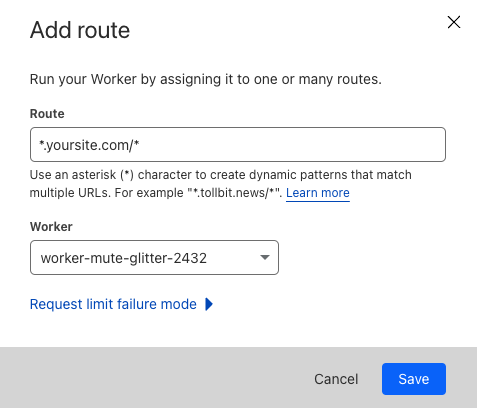
Click Save. The Worker starts handling requests as soon as the route is saved.
NoteIf your site does not use the
wwwsubdomain and all traffic towwwis redirected to your main site (www.example.comis redirected toexample.com), set the route to<your_site.com>/*instead.
Minimizing Worker Usage
With the route above, every request to your site runs through the Worker. You can leave out requests for static assets and scripts, which do not need it.
If your site serves its static assets from a common path, such as example.com/assets, add routes for that path, in this example *.example.com/assets* and example.com/assets*, and set the Worker for those routes to Empty.
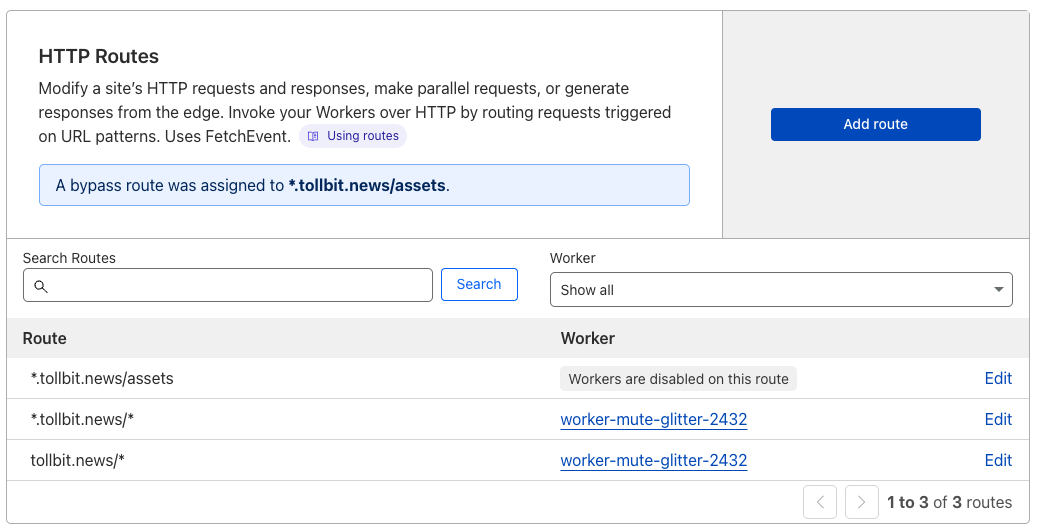
Requests on a route without the Worker are not routed to your Agent Site and do not get visitor routing, so only exclude paths that serve static files. If the Worker forwards your logs, those requests are also left out of your analytics, which works best with requests that correspond to page views. Logpush records them either way.
What the Worker Does
Analytics
With FORWARD_LOGS set to true, the Worker records each request it handles, with the status that was actually served, and forwards the logs to TollBit in batches. Forwarding happens after the response has been returned, so it does not slow down your site. Logs are authenticated with your secret key.
With FORWARD_LOGS set to false, the Worker sends nothing to TollBit. Logpush records every request to your site, including the ones the Worker serves from your Agent Site or redirects.
Agent Site
AI agents that request your site are served from your Agent Site on your tollbit subdomain, while visitors continue to reach your own origin. The Worker matches the User-Agent header against the list at the top of the code, without regard to case, and fetches the same path and query string from your tollbit subdomain. For www.example.com and example.com, that is tollbit.example.com.
If your Agent Site cannot serve a GET or HEAD request, the Worker serves it from your origin instead, the same way a visitor's request is served. This happens when the Agent Site responds with a 5xx status, including the 52x and 530 errors Cloudflare returns when it cannot reach the Agent Site, or takes longer than ten seconds to respond. Other requests from AI agents, such as POST, are always sent to your Agent Site, and receive a 502 if it cannot be reached. If the Worker forwards your logs, these requests are logged with the status your origin returned.
Routing Visitors from Cited Content
Content published through the Agent Site CMS lives on your tollbit subdomain and is served to AI agents. When an agent cites one of these pages in an answer, the reader can click that citation to visit your site. Since the page was published for agents, the URL may not exist on your main site. The Worker lets TollBit route these visitors to a destination that you configure, such as your home page or the published page itself.
This only applies to URLs that your site has no page for, so existing pages and normal traffic are not affected. If TollBit has nothing configured for a URL, or TollBit cannot be reached, your site serves its own error page, exactly as it does today.
- A visitor requests a URL and your origin responds with a
404. - The Worker asks TollBit whether anything is configured for that URL. The request is sent to the TollBit fallback origin,
fallback.tollbit.com, with the same path and query string and your site's hostname in theX-Tollbit-Hostheader. - If TollBit has a destination configured, it responds with a redirect, either to that destination or to the published page on your
tollbitsubdomain. The Worker returns that redirect and the visitor follows it. - If TollBit responds with a
404, takes longer than two seconds, or fails in any way, the response is left untouched and your origin's own error page is served.
TollBit is only consulted for 404 responses to GET and HEAD requests from visitors, so no other request does extra work.
Caching
Agent Site responses are returned with Cache-Control: no-store. Redirect responses from TollBit include Cache-Control: public, max-age=300, which the Worker passes on, so a visitor's browser may reuse a redirect for up to five minutes. Keep this in mind when testing so a cached response is not mistaken for a misconfiguration.
Verifying the Setup
Routing Visitors from Cited Content
Make these requests as a regular visitor, not with the user agent of an AI agent. Requests from AI agents are served from your Agent Site instead, so they do not receive the redirect. The commands below use curl's own user agent, which counts as a visitor.
Request an agent-only URL that has a configured destination and confirm you receive the redirect. Then request a URL your site has no page for, such as a made-up path, and confirm your site's normal error page is served with a 404 status.
# Expect a redirect status and a Location header
curl -sI https://www.example.com/agent-only-page

# Expect 404, with your site's own error page as the body
curl -s -o /dev/null -w "%{http_code}\n" https://www.example.com/made-up-path
Contact [email protected] to have us configure an agent-only test URL and destination for your property.
Analytics
Charts in your TollBit dashboard are updated once a day, so allow up to 24 hours after the Worker is attached. With Logpush, analytics starts once we confirm your logs are being ingested.
Updated about 12 hours ago