
Adding Your Property
Learn how to add and verify your property before setting up Analytics & Agent Site.
When you first log in to your org, you will be taken to the property overview page. If you don't have any properties configured, you will see this form that you can use to create your property. Create your property by giving it a name and inputting the domain name, i.e. example.com for your property.
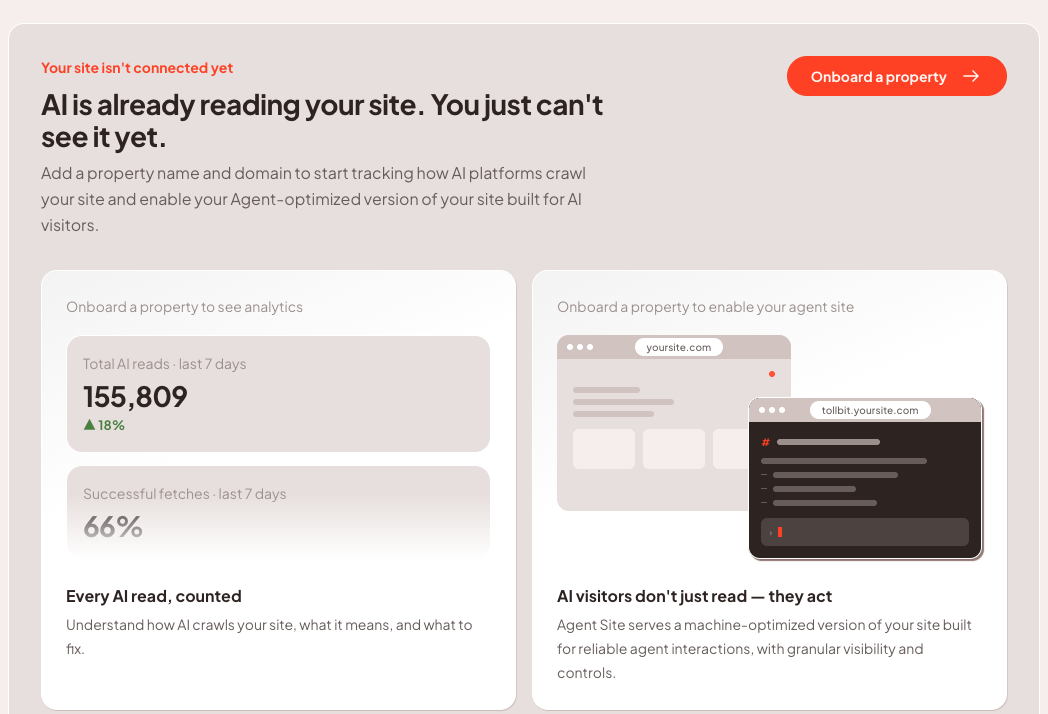
Once you've added your property, we will automatically fetch your sitemap through your robots.txt to determine your site's layout.
Pro TipWe recommend brands maintain a
robots.txtfile and a sitemap that is kept up to date. However, this is not required to onboard onto TollBit.
Verifying a Property
Once you create a property, TollBit needs to verify your ownership of the domain and spin up your agent site. The records to be placed in your DNS registry will follow right after you have created your property.
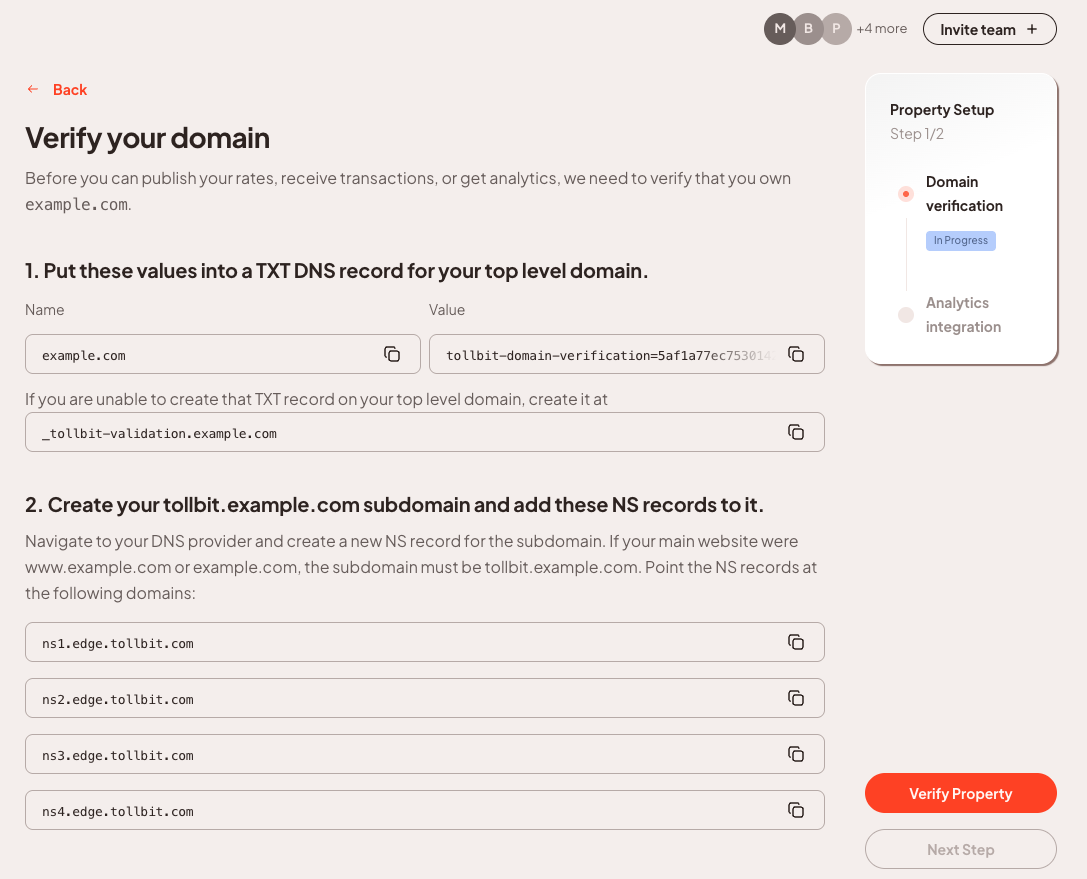
Step 1: Create TXT Record in your DNS registry
In your domain's DNS settings, create a TXT record for your top level domain (example.com, not tollbit.example.com. This might be a field called "name" or "host" when creating this record). Copy the TXT record value from the TollBit dashboard (it will look like tollbit-domain-verification=...) and paste it into the TXT you created. If you are unable to put the TXT record on your top level domain (if you already have a CNAME), you can put the TXT record on the _tollbit-validation subdomain. Looking at the full host, this would be _tollbit-validation.example.com.
Step 2: Set Up Subdomain in your DNS registry
As part of verification, we will also set up the tollbit subdomain in your registrar. This allows users to easily access the content mirrored on your main website. This will not affect your main website's SEO, load times, etc.
Navigate to your DNS provider and create a new NS record for the subdomain. If your main website were www.example.com or example.com, the subdomain must be tollbit.example.com. Point the NS records at the following domains:
ns1.edge.tollbit.comns2.edge.tollbit.comns3.edge.tollbit.comns4.edge.tollbit.com
Pro TipDepending on your DNS provider, there may be a short period between saving your DNS updates and when the changes are visible to TollBit. This is normal and we give you the ability to continue with the onboarding process while you wait for these changes to propagate
Onboarding a large number of domains? Contact [email protected] and we can help you plan the DNS changes.
Allow TollBit's IP Addresses
RequiredTollBit must be able to reach your sites. We request your pages to set up your Agent Site and to power the Agent CMS view of your content. If our requests are blocked, challenged, or rate-limited, neither of these will work correctly.
TollBit sends these requests from a fixed set of static IP addresses, published at https://tollbit.com/static-ips.txt. At the time of writing, the list is:
52.22.183.94
3.220.109.109
Always use the published list as the source of truth, and check it again if TollBit tells you it has changed.
Our requests use the user agent tollbot/1.0, so you may see it show up in your logs.
Make sure these addresses are allowed through every security layer that could block or challenge our requests. This applies to every hostname you onboard with us:
- Your CDN's WAF and firewall rules: IP allow and block lists, managed rules, and rate limiting.
- Bot protection, if enabled: make sure requests from these IPs are not blocked, challenged, or served alternate content.
- Any firewall or WAF in front of your origin servers, outside of your CDN.
If you are unsure whether your configuration blocks us, contact [email protected] and we will confirm from our side.
Updated about 13 hours ago