
Fastly
Learn how to integrate TollBit with Fastly.
Every TollBit Fastly setup is built from the same two pieces, which you create and own in your Fastly service:
- A backend named
tollbit_originthat bot traffic is forwarded through. - An HTTPS log streaming endpoint that powers TollBit analytics.
Set those up first, then choose how bot blocking is managed:
- TollBit Managed: you give TollBit a scoped API token, and bot blocking is controlled from the TollBit dashboard. TollBit only rewrites the content of a dynamic VCL snippet you own — it never creates objects, clones versions, or activates configurations, so it fits cleanly into Terraform and other infrastructure-as-code workflows.
- User Managed: you write and maintain the snippet content yourself, and TollBit needs no API access to your Fastly account.
Allow TollBit's IP Addresses
RequiredTollBit must be able to reach your sites. We request your pages to set up your Agent Site. If our requests are blocked, challenged, or rate-limited, your Agent Site will not work correctly.
TollBit sends these requests from a fixed set of static IP addresses, published at https://tollbit.com/static-ips.txt. At the time of writing, the list is:
52.22.183.94
3.220.109.109
Always use the published list as the source of truth, and check it again if TollBit tells you it has changed.
Our requests use the user agent tollbot/1.0, so you may see it show up in your logs.
Make sure these addresses are allowed through every security layer that could block or challenge our requests. This applies to every hostname you onboard with us:
- Fastly: ACLs, rate limiting, the Next-Gen WAF, and any custom VCL that blocks or challenges requests.
- Any firewall or WAF in front of your origin servers, outside of Fastly.
If you are unsure whether your configuration blocks us, contact [email protected] and we will confirm from our side.
Set up the TollBit Origin
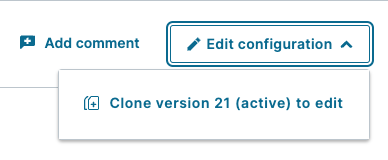
Go to the Deliver tab and select the domain you wish to integrate. On the right side of the screen, click the Edit configuration button and choose to clone your current active version.
Create a New Host
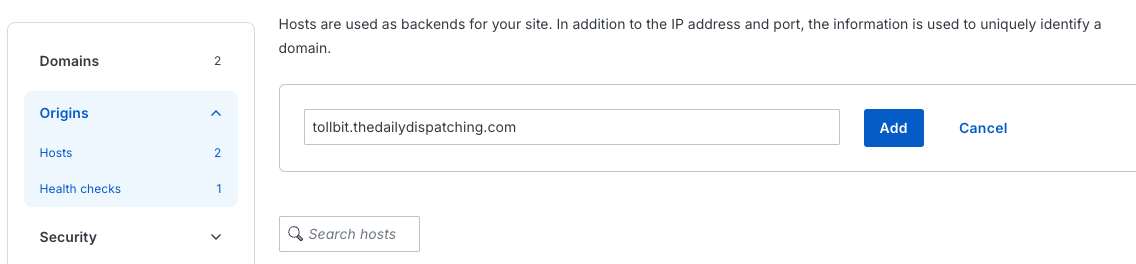
Navigate to the Origin tab in your left navigation and create a new host. Use your tollbit subdomain as the host.
Once you create this, you might see a warning that this backend is unused. No need to worry about this for now.
Once it’s been added, scroll down and click the little pencil icon next to the host name to edit this and give it a better name. Name it exactly tollbit_origin. Scroll down and click Update to save.
In this example, we are using our test website thedailydispatching.com.
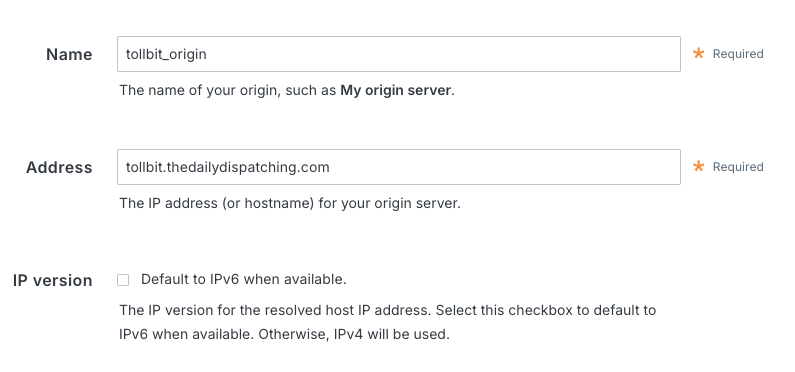
If you manage your service with Terraform or another infrastructure-as-code tool, define the backend there instead. The requirements are simply: the name must be exactly tollbit_origin, the address is your tollbit.<your-domain> subdomain, and TLS is enabled on port 443.
Steps for Analytics
Analytics is powered by a log streaming endpoint on your own Fastly service. TollBit never adds or removes logging configuration for you. If you use the TollBit dashboard, it shows analytics as enabled once it detects the endpoint; you may need to refresh the page after setting it up.
Create a new Logging Configuration
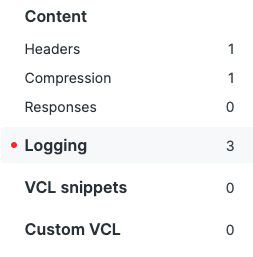
Go to your Fastly Dashboard and pick the correct domain. Click “Edit Configuration”, and clone your current configuration. This saves a new configuration version as a draft, and allows you to rollback if necessary. This should bring you to a new screen. On the sidebar, scroll down until you see Logging and click on that. Then, click “Create Endpoint”.
Configure your logs to be sent to our logging endpoint

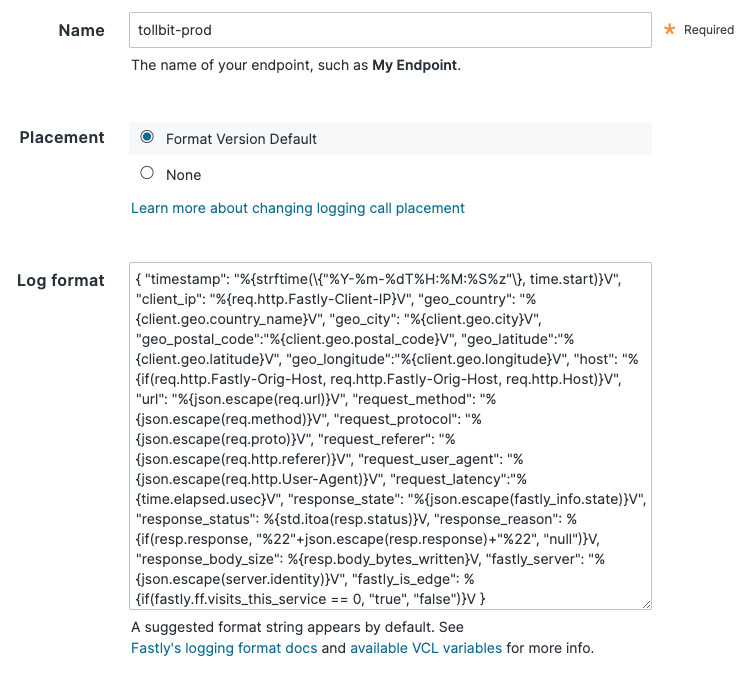
Find the HTTP logging endpoint and click “Create endpoint”. You can set the name to anything descriptive (e.g. tollbit-prod). Keep the placement option as the default selection. Make sure your log format is exactly as follows, without extra trailing spaces or newlines:
{ "timestamp": "%{strftime(\{"%Y-%m-%dT%H:%M:%S%z"\}, time.start)}V", "ip_address": "%{req.http.Fastly-Client-IP}V", "geo_country": "%{client.geo.country_name}V", "geo_city": "%{client.geo.city}V", "geo_postal_code":"%{client.geo.postal_code}V", "geo_latitude":"%{client.geo.latitude}V", "geo_longitude":"%{client.geo.longitude}V", "host": "%{if(req.http.Fastly-Orig-Host, req.http.Fastly-Orig-Host, req.http.Host)}V", "url": "%{json.escape(req.url)}V", "request_method": "%{json.escape(req.method)}V", "request_protocol": "%{json.escape(req.proto)}V", "request_referer": "%{json.escape(req.http.referer)}V", "request_user_agent": "%{json.escape(req.http.User-Agent)}V", "request_latency":"%{time.elapsed.usec}V", "response_state": "%{json.escape(fastly_info.state)}V", "response_status": %{std.itoa(resp.status)}V, "response_reason": %{if(resp.response, "%22"+json.escape(resp.response)+"%22", "null")}V, "response_body_size": %{resp.body_bytes_written}V, "fastly_server": "%{json.escape(server.identity)}V", "fastly_is_edge": %{if(fastly.ff.visits_this_service == 0, "true", "false")}V, "signature": "%{json.escape(req.http.signature)}V", "signature_agent": "%{json.escape(req.http.signature-agent)}V", "signature_input": "%{json.escape(req.http.signature-input)}V" }Finally, set the URL to https://log.tollbit.com/log.
Ensure that your Requests are Authenticated
Go into Advanced Options and set the “Custom header name” field to “TollbitKey”. You must set the customer header value to your secret key. Log into your TollBit portal and go into the API key tab and copy your secret key. Paste it into the “Custom header value” field with no trailing spaces. Keep all the other settings as default, scroll to the bottom, and save.
NoteThe TollBit dashboard detects the endpoint by its URL, so analytics will show as enabled even if the
TollbitKeyheader is missing or wrong — but your logs will be rejected and no analytics data will appear. If the analytics charts stay empty, check this header first.
Once you are ready to publish these changes, click the “Activate” button. Keep in mind that if you have other unpublished changes in Fastly, this may also publish those as well.
If you manage logging with infrastructure-as-code, define the equivalent HTTPS logging endpoint there — it just needs to match the settings above: the URL, the log format, the TollbitKey header, and a POST method.
Steps for Agent Site
Bot forwarding works the same way in both options: a dynamic VCL snippet named tollbit_recv_dynamic_snippet (type recv) matches known bot user agents and proxies them through the tollbit_origin backend to your tollbit subdomain. Dynamic snippets keep their content outside the versioned configuration, so the bot list can change without cloning and activating a new service version. The only difference between the two options is who manages that snippet's content.
NoteThe VCL snippet will intercept and forward matching traffic on your main site. Please ensure that you have tested this in a test environment or for a small subset of pages before activating this across your entire site.
Fastly (TollBit Managed)
Get Service ID and API Key from Fastly
Go to your Fastly Dashboard and pick the domain associated with your property.
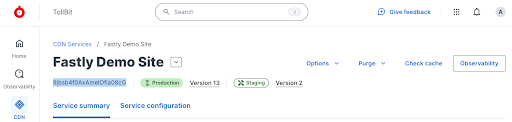
Right under your service name, you’ll see an alphanumeric string. It should be the same alphanumeric string that completes the URL string for the page. See the highlight below for reference.
Next, hover over Account on the main navigation bar on the left and choose API tokens > personal tokens.

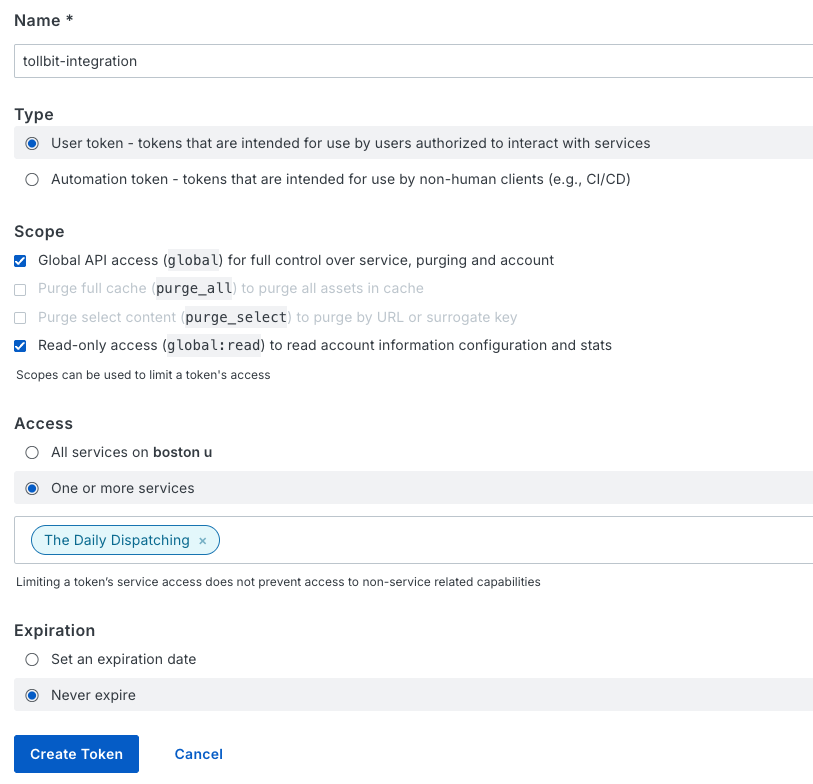
Create a new token that has Global API access as well as Global read access. Ensure that this token is granted access to the service of your site(s), and that there is no expiration on this token.
Setup Integration in TollBit
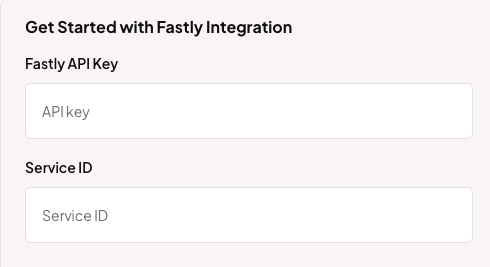
Go to your TollBit dashboard and pick the Integrations tab in the main navigation menu. Input your Fastly API key and service ID in the form and click Save.
Create the dynamic snippet and connect
Create a dynamic VCL snippet named exactly tollbit_recv_dynamic_snippet with type recv, either in the console or in your infrastructure-as-code configuration. You can leave its content empty as TollBit manages the content from here on.
Leave the snippet's content unmanagedIf you use Terraform, do not have Terraform manage the contents of this snippet. Dynamic snippet content lives outside the versioned configuration and that is what lets TollBit update your bot list without publishing a new version. If Terraform manages the content too, every TollBit update will show up as drift.
Activate the version that contains the backend and snippet, then click Verify connection on the Fastly integration page in your TollBit dashboard. If anything is missing or misnamed, the error message will tell you exactly what to fix.
Manage bot blocking from the dashboard
Once connected, use the Bot Paywall section of the integration page:
- Toggle on “Block” for each agent you would like to forward.
- “Block All Bots” blocks every bot in the list, including any custom user agents already in your snippet.
- “Allow All Bots” clears the block list entirely.
Every change is applied by rewriting the snippet's content and takes effect within seconds. No new service version is created, so there is nothing to activate and nothing for Terraform to reconcile.
Fastly (User Managed)
You can also manage the snippet's content yourself, without giving TollBit API access. This allows for additional customizations for implementing bot forwarding. Please reach out to [email protected] if you'd like to discuss this implementation route considering your use case.
NoteIf you’ve followed our docs previously to set up your recv and error VCL snippets, this would just require some quick edits. We will walk through the snippet as if setting it up as new in these docs.
In your left nav of your cloned configuration, go to VCL snippets. If you haven’t already, create a new snippet for the recv step named tollbit_recv_dynamic_snippet, and choose the Dynamic snippet type. Because this is the same snippet name and type the TollBit Managed option uses, you can switch to it at any point by adding your API credentials and clicking Verify connection in the TollBit dashboard.
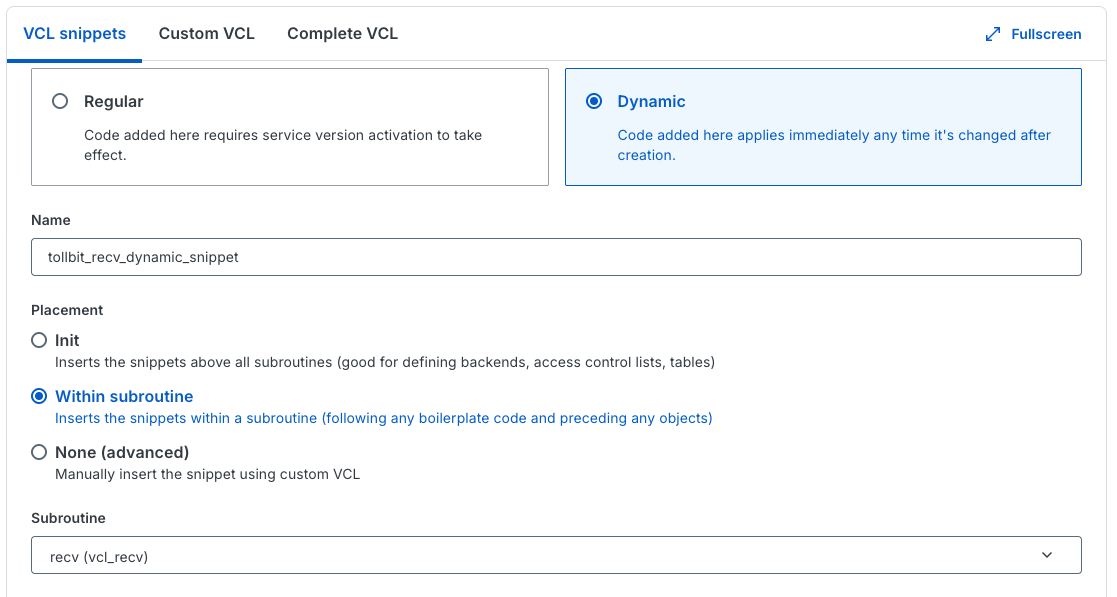
For the recv snippet, paste in the following snippet. Ensure that the backend name is the same that you’ve set before. If you applied our recommended edit, it will be F_tollbit_origin (line 2 below). Edit the user agent list to control which bots are forwarded.
if (req.http.user-agent ~ "(?i)agentnativesearchbot|ai2bot|aionbot|aiwebindex|amazonbot|amzn-searchbot|amzn-user|anthropic-ai|atevesearchsourceurldiscovery|azureai-searchbot|bravebot|bytespider|ccbot|chatgpt-user|claude-code|claude-searchbot|claude-user|claude-web|claude/|claudebot|cloudflarebrowserrenderingcrawler|cohere-ai|comet/|cursor/|desearchbot|devin/|diffbot|duckassistbot|exabot|exasearchbot|exauser|fellou|gensparkbot|githubcopilotruntime|goose/|gptbot|grok-agent|grokbot|hermes-agent|iaskspider|ibou-search|iboubot|isonsearchbot|keenable|kimi-searchbot|kimibot|lightpanda|linkupbot|manus-user|meta-externalagent|meta-externalfetcher|meta-webindexer|mistralai-user|mojeekbot|mysearchbot|oai-adsbot|oai-searchbot|openclaw|perplexity-user|perplexity/|perplexitybot|rednote-websearch-bot|reflectionbot|shap-user|shapbot|sofyabot|talarionsearchbot|timpibot|youbot") {
  set req.backend = F_tollbit_origin;
  set req.http.Fastly-Orig-Host = req.http.host;
  if (std.prefixof(req.http.host, "www.")) {
      set req.http.host = std.replace_prefix(req.http.host, "www.", "tollbit.");
  } else {
      set req.http.host = "tollbit." + req.http.host;
  }
  return(pass);
}
If you created an error snippet in the past for the redirect, you no longer need it, and can remove it.
This should now be all you need to forward known bot traffic to your tollbit subdomain!
Once this is saved, you can now activate your service configuration and this will be live in a few minutes.
Updated 6 days ago